Selected Logs
This option lets you filter the collection of specific types of logs, in addition to the set of Basic logs that are collected by default.
Log Types
|
Log Type |
Description |
|---|---|
|
OVOC Full Logs |
Full set of OVOC logs including all logs described in this table. |
|
Apache Logs |
Apache HTTP/S server logs for OVOC server > client connections; OVOC > device connections and for endpoints downloading of firmware and configuration files. |
|
Cassandra Logs |
Cassandra database logs. |
|
Kafka Logs |
Kafka logs for managing alarms retrieved from the VQM and PM servers. |
|
Syslog |
Operating system syslog files (see also Diagnostics). |
|
Hardware Configuration |
OS dmidecode output. |
|
FD Information |
OS File Descriptors summary. |
|
Memory Statistics |
OS Memory information. |
|
Yafic Scans |
OS Yafic scan results. |
|
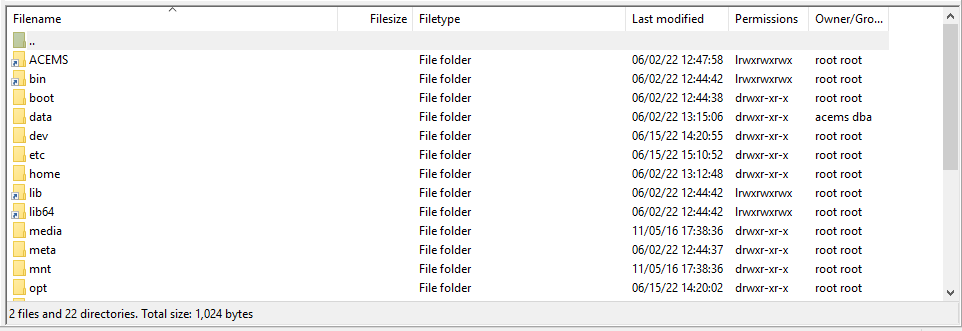
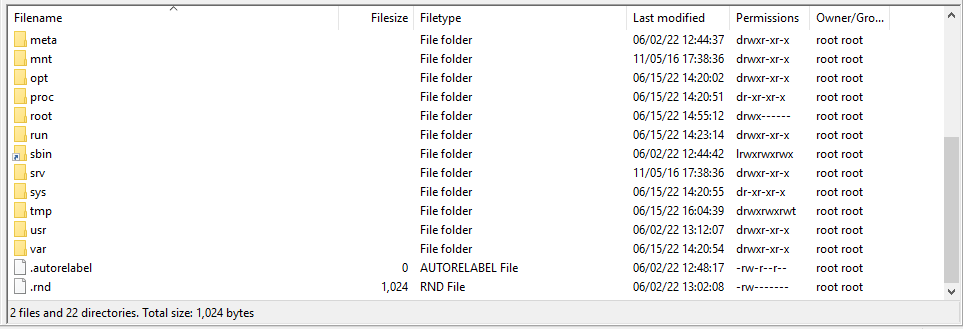
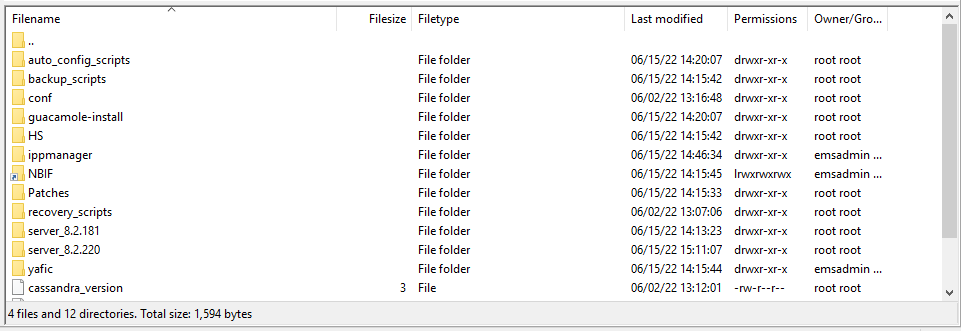
acems & Root dirt contents |
Output of the contents of all folders under "root" and "acems" directory root directory contents:
acems directory contents:
|
|
Backup Network Files |
Network Backup Files |
|
Tcpdump Captures |
TCPdump captures |
|
License File |
OVOC license file (see Managing OVOC License Features). |
|
Postgres Logs |
PostgreSQL database log files. |

| ➢ | To select logs: |
| 1. | Select option Select Logs, and then press Enter. A confirmation message is displayed that Basic OVOC logs are collected. |
Select Logs
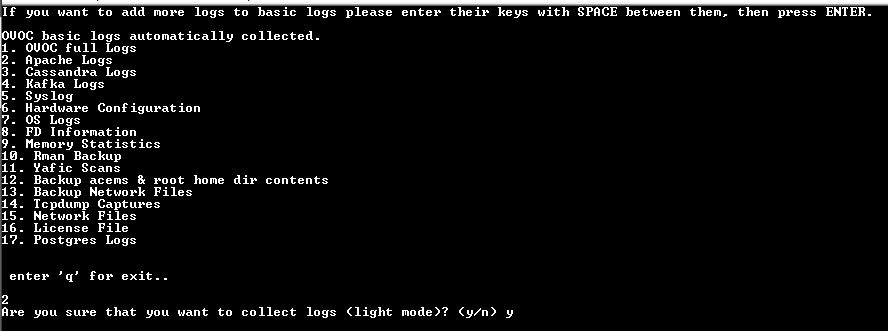
| 2. | If you wish to collect additional log types, choose the number corresponding to the log type that you wish to collect, and then press Enter. You are prompted if you wish to collect logs in light mode, type y, and then press Enter. |
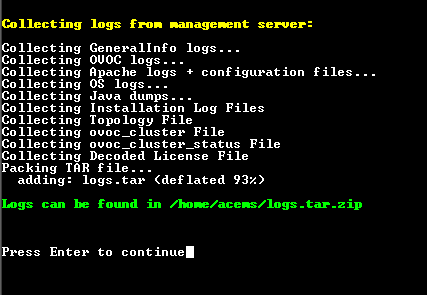
In the example below, 'option 2 Apache Logs' was selected. Once all of the logs have been collected, a message is displayed informing you that a tar file has been created and the location of the tar file.
Log Directory
| 3. | Transfer the log file to your desired location (see Transferring Files). |
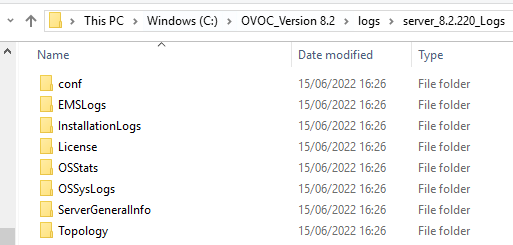
The following screen shows the contents of the extracted tar file for the "OVOC Full Logs" directory:
OVOC "Full Logs"